Showing posts with label mySite. Show all posts

Tuesday, 20 December 2016

SharePoint 2013 ::: How to restore the deleted "Suggested sites to follow" Web Part from a user's MySite

Hi all,

Today’s challenge is to restore the Web Part “Suggested sites to follow” that was deleted by the user himself.

So, do not lose your time in trying to find the Web Part in the Add Web Part page of the mySite, it is not available.


The script, provided by Microsoft, that put me on the track is:

Add-PsSnapin Microsoft.SharePoint.PowerShell
[System.Reflection.Assembly]::LoadWithPartialName("Microsoft.SharePoint.WebPartPages")
[System.Reflection.Assembly]::LoadWithPartialName("Microsoft.SharePoint.Publishing")

$useraccount = "useraccount"
$url = "http://" + [System.Net.Dns]::GetHostName() + "/my/personal/" + $useraccount
$site = get-spsite $url
$web = $site.RootWeb
$pageUrl= "Social/Sites.aspx"
$webPartManager =  $web.GetLimitedWebPartManager($pageUrl, [System.Web.UI.WebControls.WebParts.PersonalizationScope]::Shared);
$webPart = $webPartManager.WebParts | where-object { $_.WebBrowsableObject.GetType().Name -eq "ProjectSearchBrowseWebpart" }

if($webPart -ne $null)
{
    $webPartManager.DeleteWebPart($webPart)
}
$web.Update();


In the script, I found the name of the Web Part "ProjectSearchBrowseWebpart", and the page to find it.
Then, I decided to compare the code of both pages “Social/Sites.aspx” from my mySite and from the user’s mySite, using SharePoint Designer 2013.


I found then the difference at the end of the code:

Hereunder is the code from my mySite, and in yellow, the missing code in the user’s mySite code:

            <div class="ms-contentFollowing-sitesRightZone ms-tableCell ms-verticalAlignTop">
                <div class="ms-contentFollowing-bottomZoneContainer">
                    <WebPartPages:WebPartZone runat="server" FrameType="None" ID="RightZone" Title="<%$Resources:sps,LayoutPageZone_RightZone%>" Orientation="Vertical"><ZoneTemplate>
                                                                           <SPSWC:ProjectSearchBrowseWebpart runat="server" CategoryString="Site" AllowEdit="False" ChromeType="TitleOnly" Description="The recommendations web part suggests content a user may wish to follow within a farm." Title="Suggested sites to follow" ID="projectSearchBrowseWebPart" __MarkupType="vsattributemarkup" __WebPartId="{344EF58F-509A-3DE1-T3DG-ID0T674FOR6Z}" WebPart="true" __designer:IsClosed="false" partorder="2"></SPSWC:ProjectSearchBrowseWebpart>

                                                                           </ZoneTemplate></WebPartPages:WebPartZone>
                </div>
            </div>
        </div>
    </div>
</asp:Content>


So, I simply made a copy/paste of the missing line, save the user’s “Social/Sites.aspx” page, and made a refresh of his mySite in the browser.

 ==>Problem solved.


Voilà,


That’s all Folks !!!

Tuesday, 31 March 2015

Confirm Site use and Deletion

Hi All,

Today, I spend time to check the Retention Time of an unused mySite.
One of my client was complaining that he received a mail reminder that his mySite will be deleted as there is no activity.

Here is the way to check in SharePoint 2013 (same as SharePoint 2010):

 - Step 1:


 - Step 2:


Et Voilà !!!


That’s all folks


Monday, 27 January 2014

How to Limit the Self-Service Site Creation in SharePoint 2013 to only users added into a specific AD Group

Hi all,

Today, I was asked to allow the self-service site creation for the mySite in my SharePoint 2013 Farm.
As the audience will be only for the test users, I've decided to do in the same way as I've done for my SharePoint 2010 Farm.

1-      Creation of a new AD Group.


2-      Set the Self-Service Site Creation to "ON":
          In Central Administration, highlight the mySite Web App


          Select the MYSITE Web App, then review all 5 sections:
-          Self-Service Site Creation
-          User Permissions
-          User Policy
-          Anonymous Policy
-          Permission Policy


o   Self-Service Site Creation:
              

o   User Permissions: check this in the "Site Permissions" section
         

o   User Policy: use the default values

o   Anonymous Policy: use the default values

o   Permission Policy: use the default values


3-      Configuration of the User Profile Service Application:

In Central Administration, select the "Manage Service Applications" link:

In the "Service Applications" page, select the "User Profile Service Application":


            Now, select "Manage User Permissions" from the "People" section:
              
           From this Window, I've added my AD Group (in blue):


The settings for my AD Group is : thus, only users present in this AD Group will be able to create on demand their mySite when entering their mySite URL : http://mySite-uat.xxx.net
               

Do not forget to uncheck the "Create Personal Site" entry to all other groups, otherwise everybody from the organisation will be able to create his mySite.


That's all folks


Thursday, 16 February 2012

Search Service Application : old entries to remove to be accurate

Since last week, I've nearly done all to adapt the Search Crawl of our corporate mySite, so it'll match the ne requirements.

During previous tests last November, some old entries were not able to be removed.
I've set new filters, exceptions, etc …
All done, and always executing a full crawl after each changes.

Then, we had to enable the "NetBiosNamesEnabled" option, as our domain is known in 2 different names.

All was redone and working, except for the crawl.

I was expecting that a DB was keeping trace of the old entries, and didn't clean up that database.
A kind of index.

With the help of a consultant, I've explained with as much details as possible what I've done, and what I'm faced with.

Today, he explained that the Indexer in the Search Service Application had to be reset and the mySite contentdb still contains the wrong "domain" users, users that had been crawled at the time before enabling "NetBiasNamesEnabled".


The only way to get this out of the “system” (read: Indexer) is to reset the indexer.


What is the impact of resetting the indexer?
It depends on how big the indexer files are, how long it will take to build up a new indexer file.
Because with resetting the indexer, the existing indexer file will be deleted, and a new indexer file will be created. It will be empty.
This means for the end user that they cannot perform any search anymore until the indexer file has been build up again.

How to build new indexer file after resetting the indexer?
By running a Full Crawl. And this can take some time, depending on the quantity items that have to be crawled.


So the action plan is :
Reset the index
Do a full crawl


Then, after testing, I saw all the wrong entries removed from the search in mySite.


That's all folks

Tuesday, 7 February 2012

How to change the "Show To" option in the "Edit Profile" of mySite


Yesterday, I was asked to change the default "Show To" option in the Edit Profile section on our production mySite.

Some, had to be removed (check my hide post )  from the list, and most of the changes were to allow the mySite owner to select who can view the concerned options.

The "About me", "Assistant" and "Mobile Phone" entries were concerned by this request to match with our privacy policies.


To set the drop-down menu, changes had to be done twice.

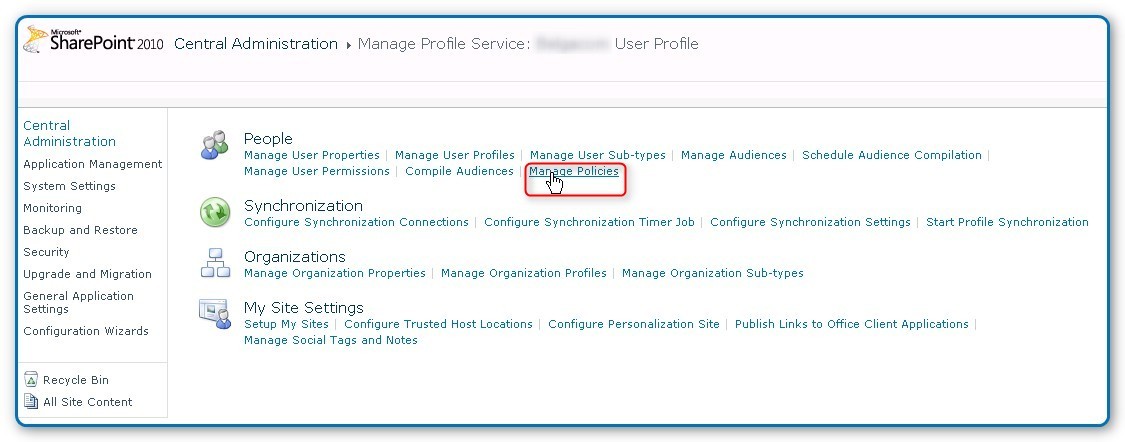
So, in Central Administration, go to the "Manage Profile Service" and select your concerned User Profile.
Then,select the People/Manage Policies.


Find the entry and select the Edit option.


Into the "Policy Settings", you will probably have those options set :


1-      Uncheck "Replicable", and click on Ok on the message windows.


2-      Check the "User can override".
The problem is that the "Default Privacy Setting" is not available.


3-      So, validate the changes with the Ok button at the bottom of the page.


You'll be back on the "Manage Policies" page.

 
4-      Re-select your option that you want to change, and edit it again.

5-      Now, the drop-down menu is available, and simply select the default option:


Now, going back to your mySite, and check that the "Show To" is now a selectable drop-down menu.


That's all folks

Monday, 6 February 2012

How to hide an option into the mySite Edit Profile


Today, I was asked to hide an option from the "Edit Profile" section of your mySite.

So, in Central Administration of your service Farm, under the Application Management > Service Applications, select the "Manage Service Applications" link.
Then, select your User Profile Service Application, and select People>Manage Policies link.

Edit the needed policy, and uncheck the "Show on the Edit Details page" box.


That's all folks


Thursday, 2 February 2012

How to Limit the Self-Service Site Creation to only users of a specific AD group


This week, we are finishing the settings and tests of the mySite part of SharePoint 2010.
We will open the mySite for a bench of test users (about 200) until end of February.
After that, we will open the mySite Self-Service Site Creation to all users of the company (more than 10.000).

So, my challenge was to allow the mySite Self-Service Site Creation only to users that are contained into an AD Group.

There is 3 steps :
-          Creation the AD Group as Global Security Group
-          Set the Self-Service Site Creation for the mySite Web App
-          Configure the User Profile Service Application to allow the AD Group to Create Personal Site


1-      mySite Web Application properties :

In Central Administration, highlight your mySite Web App, and check the settings for :

-          Self-Service Site Creation :
Select the "On" radio button, then validate the settings

-          User Permissions :
Check the box " Use Self-Service Site Creation - Create a Web site using Self-Service Site Creation. "


Then, validate the changes

-          User Policy :

Left as default

-          Permission Policy :

Left also as default


2-      Configuration of the User Profile Service Application :

In Central Administration, select the Manage service applications (from Application Management)

-          Select your User Profile Service Application

-          In People => Manage User Permissions do the following :

Uncheck the "Create Personal Site" for the existing users

Add your AD Group, and select only the "Create Personal Site" permissions


Now, people that are not member of your AD Group will not be allowed to create their mySite.


That's all folks